DeviceFrame
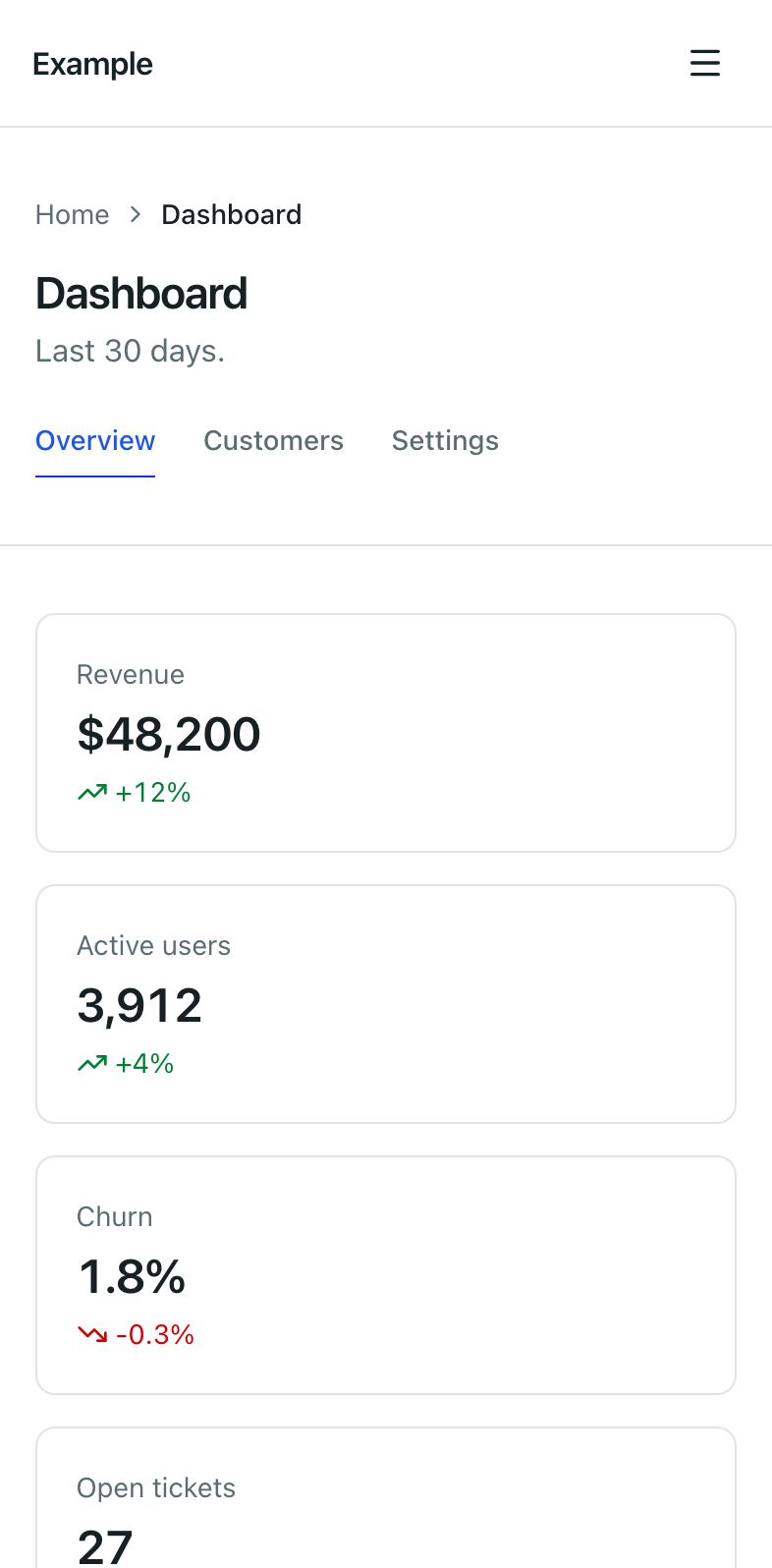
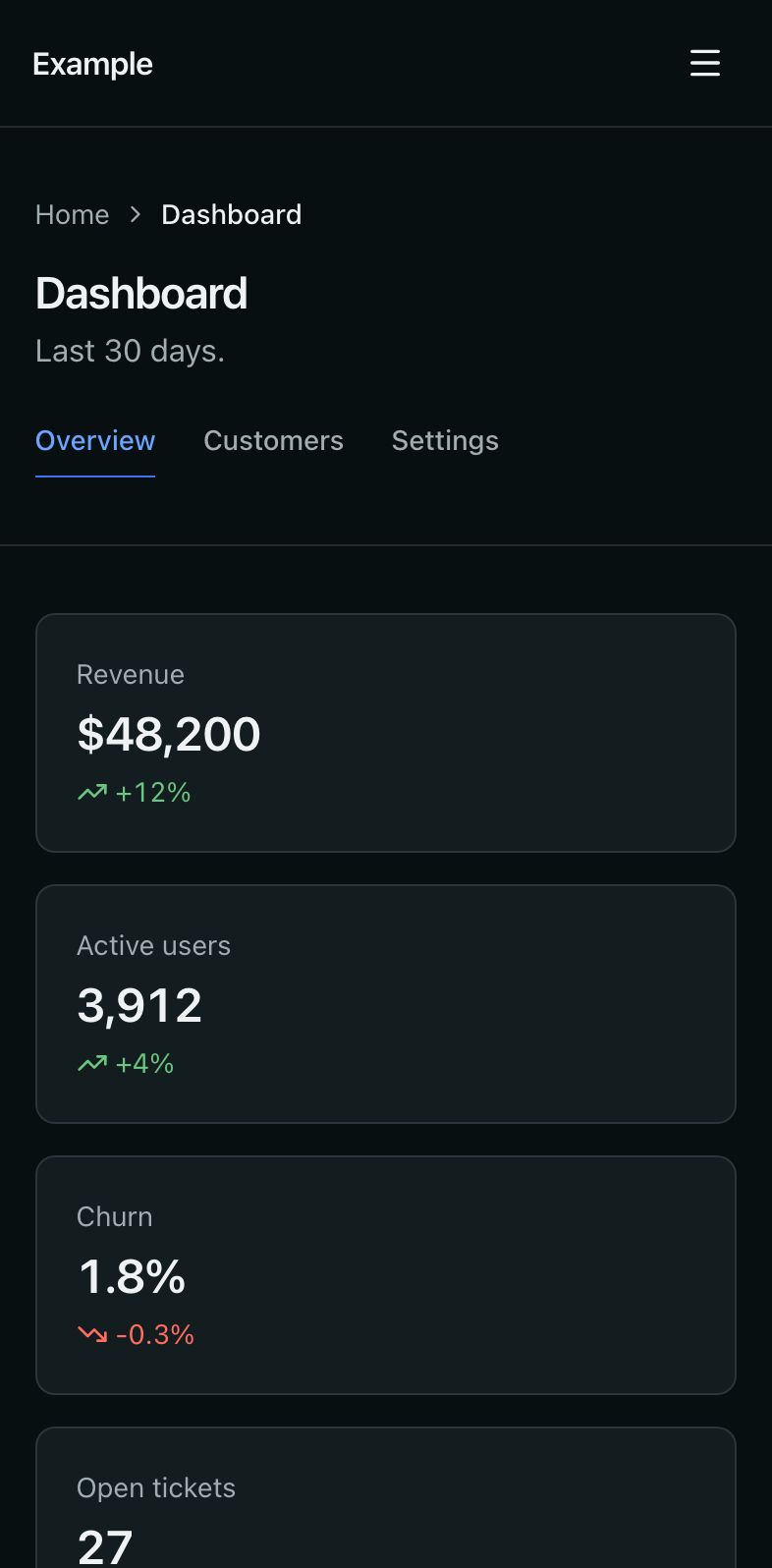
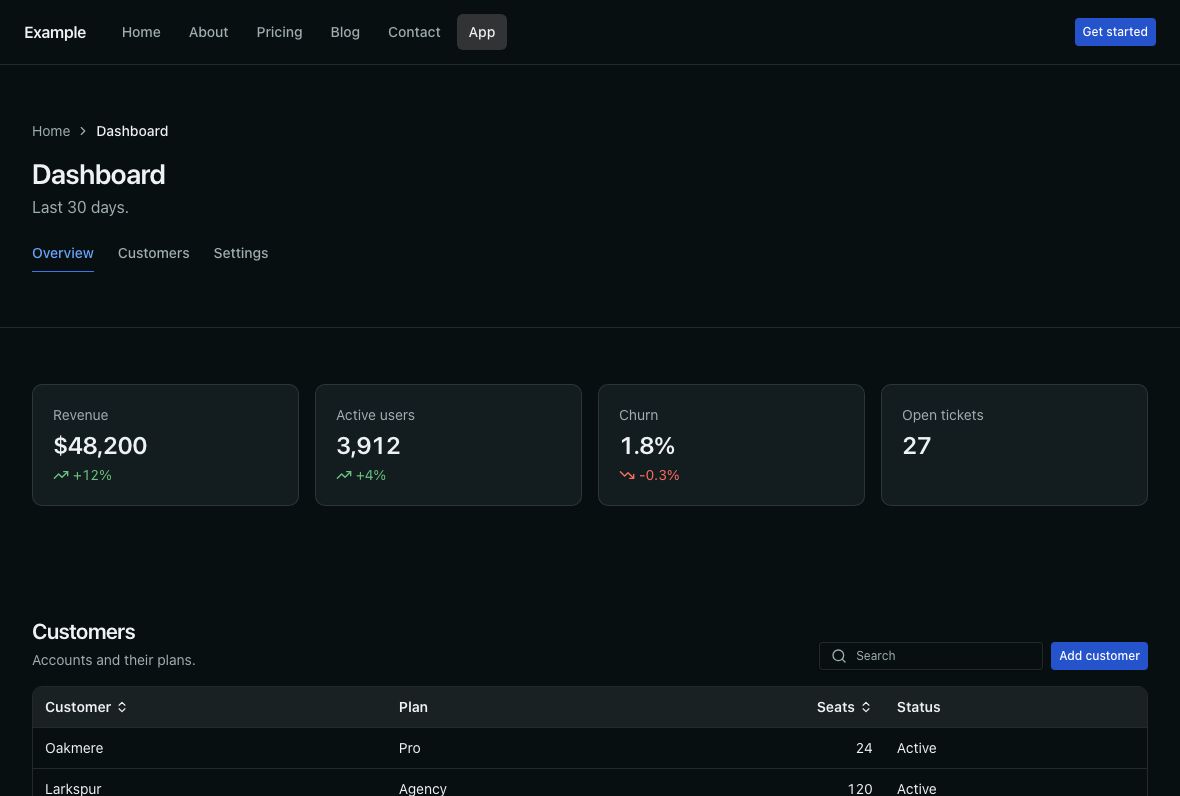
A screenshot in a phone, a landscape tablet or a browser window, drawn in CSS with the theme's colours; it scales as a whole and a dark screenshot swaps in with the theme.
Last updated
Show codeHide code
<DeviceFrame device="phone" src="/mockups/app-phone-light.jpg" srcDark="/mockups/app-phone-dark.jpg" alt="The dashboard on a phone" />Add
npx @ava-ui/apogee add device-framePulls in Image. Zero JS.
Usage
---
import DeviceFrame from '@/components/apogee/DeviceFrame/DeviceFrame.astro'
import shot from '../assets/app.png'
---
<DeviceFrame device="browser" src={shot} alt="The reports page" address="app.example.com/reports" />
API
| Prop | Type | Default | Description |
|---|---|---|---|
device |
'phone' | 'tablet' | 'browser' |
'phone' |
A portrait phone, a landscape tablet, or a browser window with an address bar. |
src |
ImageMetadata | string |
— | The screenshot. Or put any content in the default slot. |
srcDark |
ImageMetadata | string |
— | A dark-mode screenshot, shown when the page is dark. |
alt |
string |
'' |
What the screenshot shows; empty when it only decorates. |
address |
string |
'app.example.com' |
The browser’s address bar text. |
width / height |
number |
phone 786 × 1596, tablet 1180 × 796, browser 1440 × 900 | Screenshot size in pixels, for the space reserved before it loads. |
class |
string |
— | Size it with a width (w-64, max-w-3xl); everything else scales with it. |
Sizing
Every part of the frame (bezel, corners, buttons, status bar, address bar) is sized in container units of the frame’s own width, so a frame keeps its proportions at any size: give it a width and the whole device shrinks or grows. The address bar text has a floor so it stays legible on a small frame.
The content area has a fixed shape. A screenshot of that shape shows uncut:
| Device | Content area | Capture at |
|---|---|---|
phone |
393 : 798 | 393 × 798 at 2x (an iPhone screen below its status bar) |
tablet |
1180 : 796 | 1180 × 796 (an iPad in landscape below its status bar) |
browser |
16 : 10 | 1440 × 900 |
Variants
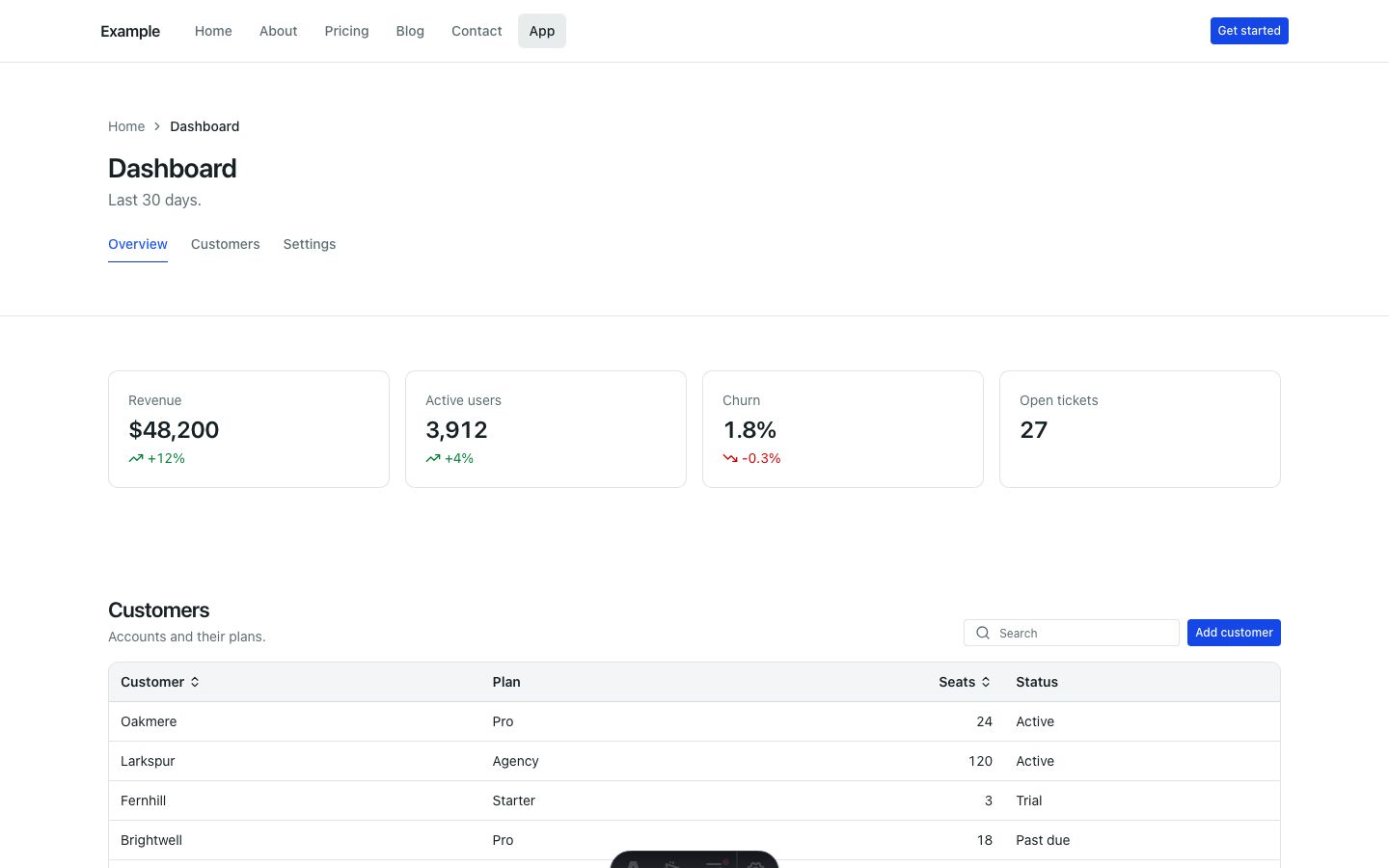
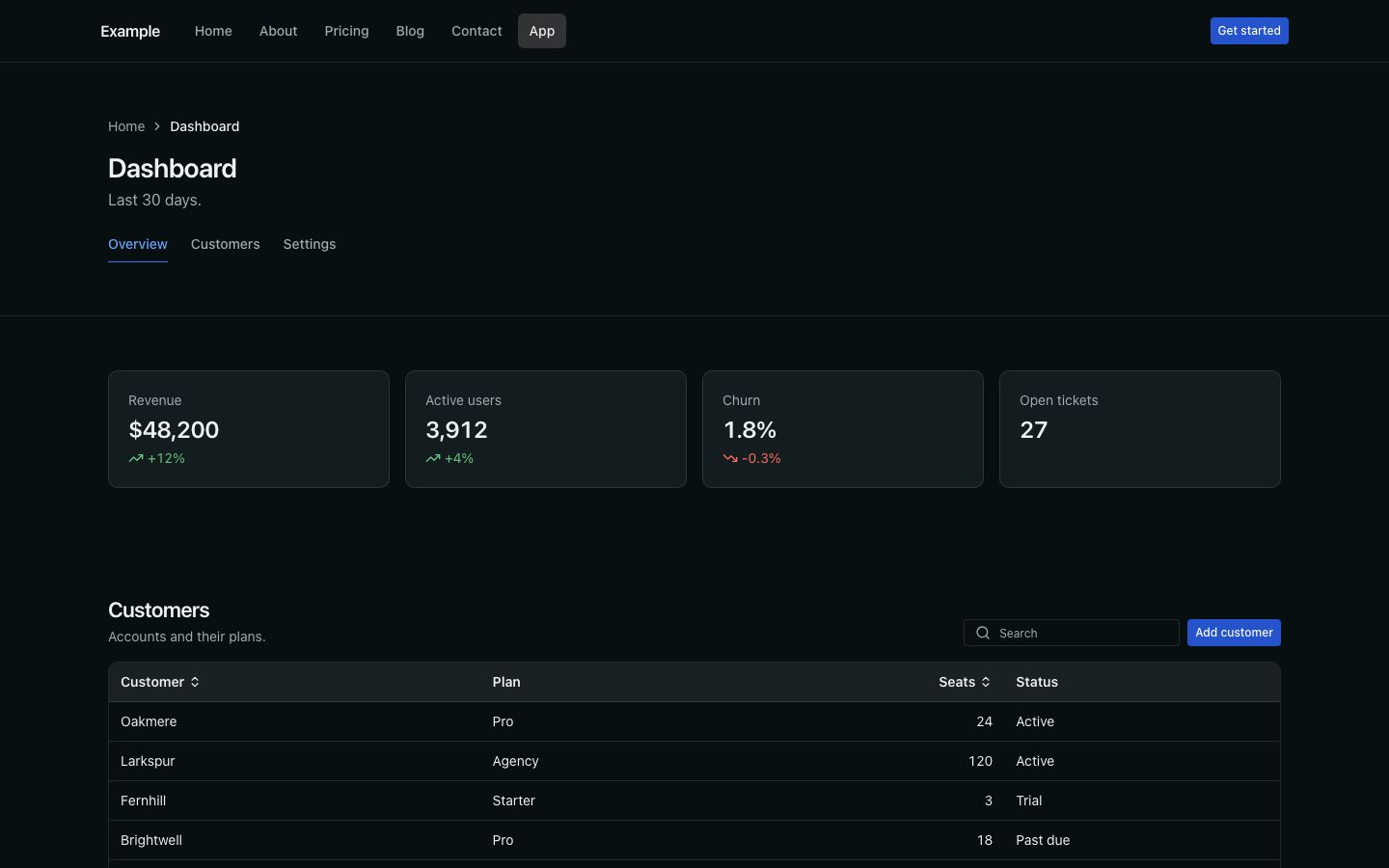
Every device:
Show codeHide code
<DeviceFrame device="browser" src="/mockups/app-desktop-light.jpg" srcDark="/mockups/app-desktop-dark.jpg" alt="The dashboard in a browser" />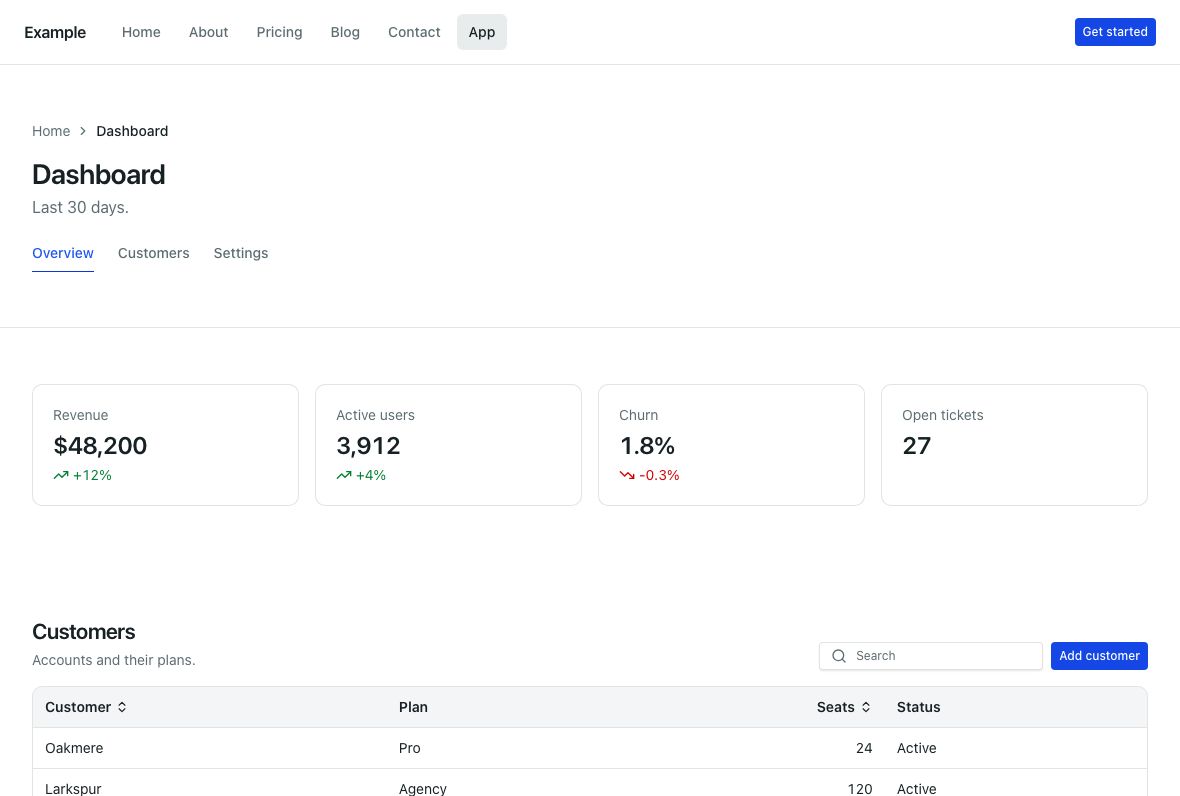
Show codeHide code
<DeviceFrame device="tablet" src="/mockups/app-tablet-light.jpg" srcDark="/mockups/app-tablet-dark.jpg" alt="The dashboard on a tablet" />The same frames, smaller. Each scales as a whole:
Show codeHide code
<DeviceFrame device="browser" class="w-72" … />
<DeviceFrame device="tablet" class="w-72" … />
<DeviceFrame device="phone" class="w-28" … />
States
- Dark mode —
srcDarkreplacessrcwhen the page is dark; the frame itself follows the theme tokens.
Examples
Phone and browser mockups in blocks: CTA sections, Hero sections.
Accessibility
- The frame’s buttons, camera, status bar and toolbar are decoration and hidden from screen readers; only the screenshot’s
altis read. - Write the
altfor what the screenshot shows, or leave it empty when the text beside it already says it.
Tokens
| Token | Used for |
|---|---|
--background-inverted |
Phone and tablet body, buttons, camera and home bar |
--background-page / --foreground-neutral |
Screen and status bar; address pill |
--background-neutral-faded / --border-neutral-faded |
Browser window and its edge |
--border-neutral |
Device edge; browser dots |
Do / Don’t
- Do use a real screenshot of your product, light and dark.
- Don’t put text the reader needs only inside the screenshot.
Content
- Crop to the part of the screen the heading talks about.