Forgot password pages
The four steps of a password reset on the AuthShell section, plus a version with a step sidebar.
Last updated
One flow, four pages: the user asks for a reset, you email a link, they set a new password, and they are done. Each page is a centred AuthShell with one action and a way back; the sidebar version shows every step at once.
npx @ava-ui/apogee add forgot-password/forgot-password forgot-password/check-email forgot-password/set-new-password forgot-password/success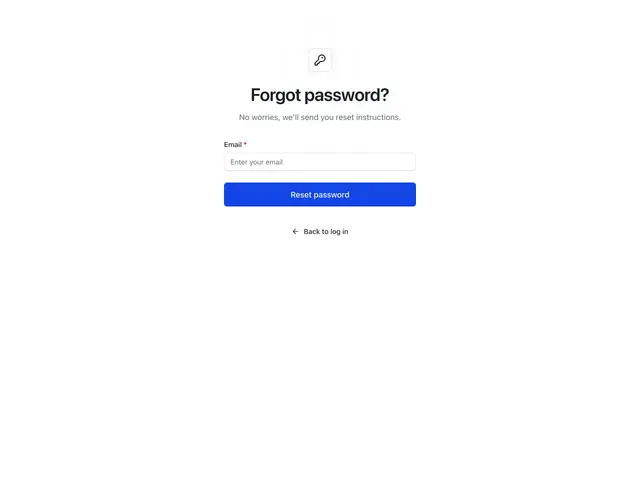
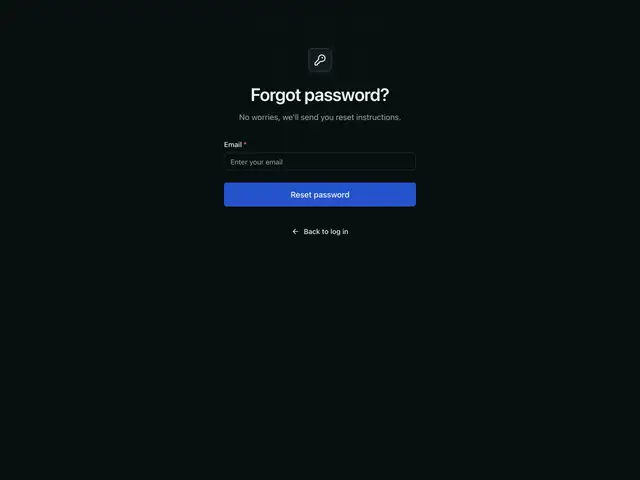
Forgot passwordStep 1. The user enters their email to get a reset link.
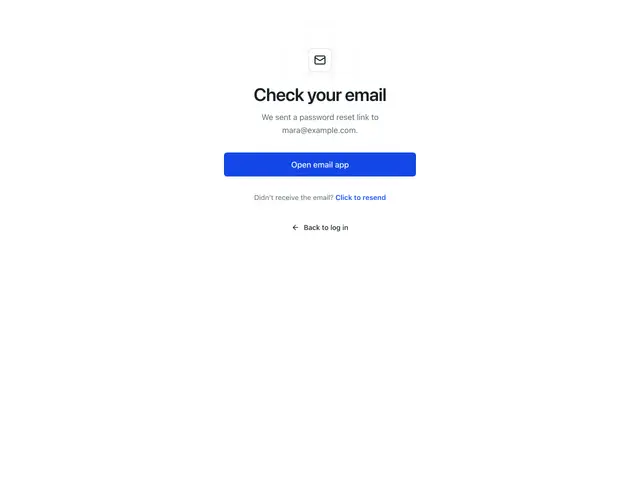
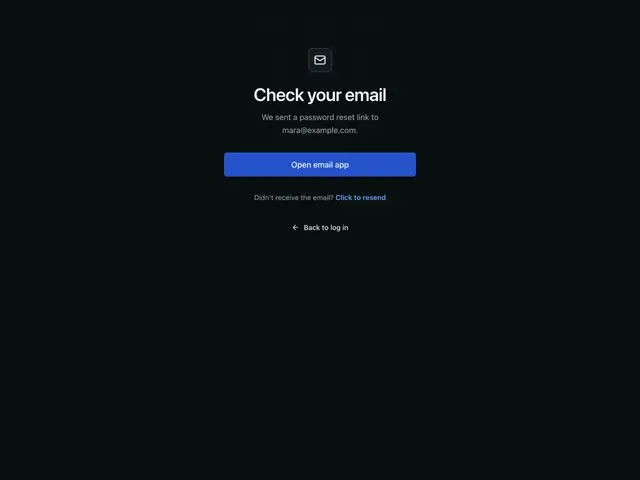
Check emailStep 2. The reset link is on its way, with a shortcut to the mail app and a resend link.
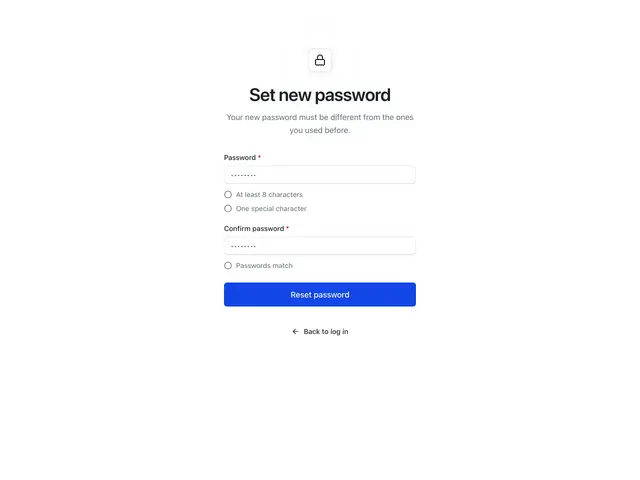
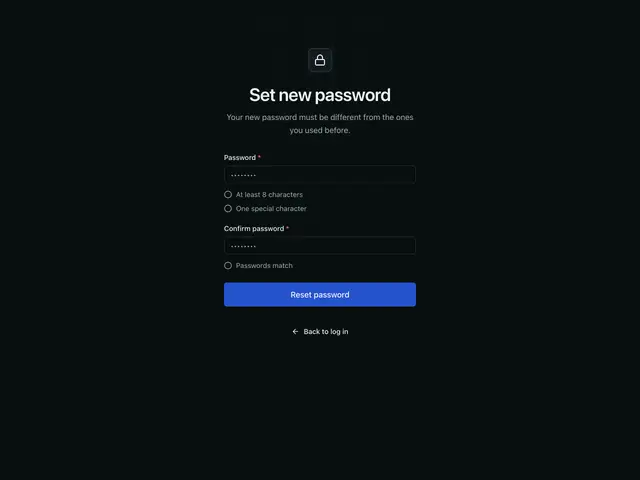
Set new passwordStep 3. A new password and its confirmation, with the rules ticked off as the user types.
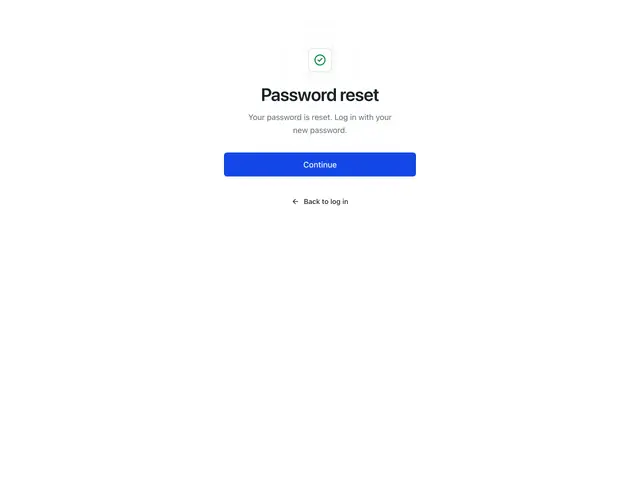
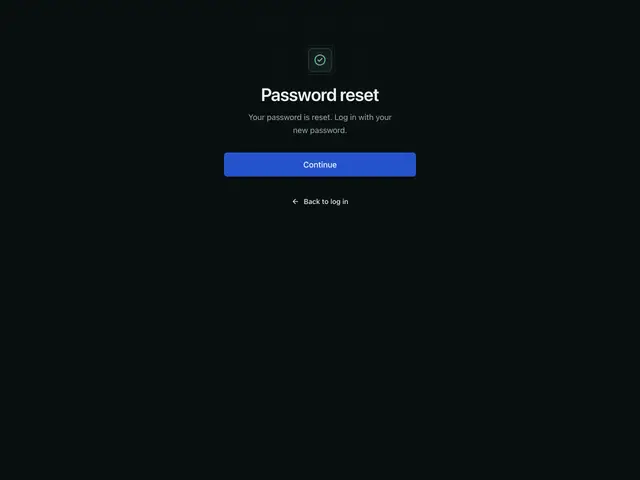
SuccessStep 4. The password is reset; one button carries on to log in.
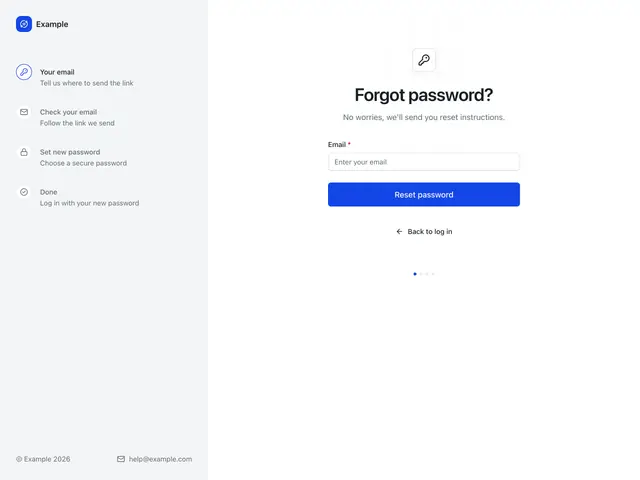
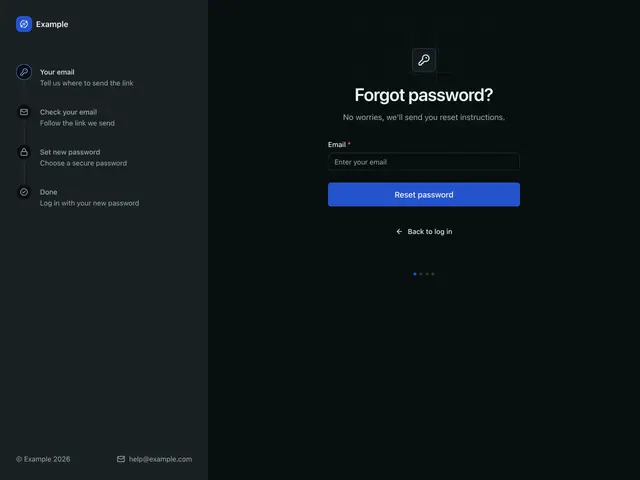
SidebarStep 1 beside a side column that lists every step of the reset.
Related
Auth shellThe frame of a log in, sign up or recovery page; brand mark, heading and your form, centred, in a card, beside a panel, or beside a step sidebar.
PasswordChecklistThe rules a new password must meet, ticked off as the user types.
Verification pagesThe three steps of email verification on the AuthShell section; check your email, enter the code, verified.